Set up Link to heading
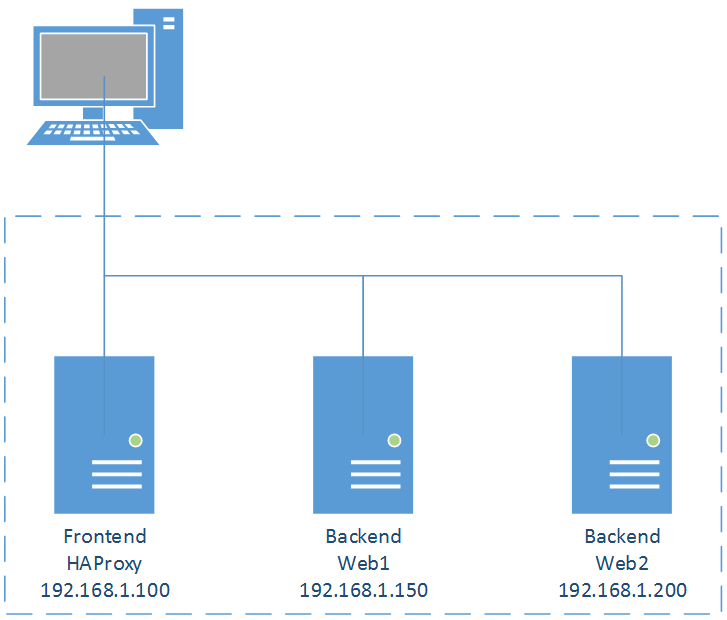
- Virtual machines:
| Frontend HAProxy Server | Backend Web Server 1 | Backend Web Server 2 | |
|---|---|---|---|
| OS | CentOS 6.9 | CentOS 6.9 | CentOS 6.9 |
| Hostname | HAProxy | web1 | web2 |
| IP address | 192.168.1.100/24 | 192.168.1.150/24 | 192.168.1.200/24 |
| URL | www.flemingcollege.ca | ||
| Application name | Roux Academy | Awesomesauce! |
1. Install and configure HAProxy Link to heading
[root@HAProxy ~]$ yum -y install haproxy

[root@HAProxy ~]$ mv /etc/haproxy/haproxy.cfg /etc/haproxy/haproxy.cfg.org

[root@HAProxy ~]$ vi /etc/haproxy/haproxy.cfg
# Create new
global
       # for logging section
       log         127.0.0.1 local2 info
       chroot      /var/lib/haproxy
       pidfile     /var/run/haproxy.pid
      # maximal number of concurrent connections that will be sent to the server
       maxconn     256
      # process's user and group
       user        haproxy
       group       haproxy
      # makes the process fork into background
       daemon

defaults
       # running mode
       mode        http
       # use global settings
       log         global
       # get HTTP request log
       option      httplog
       # timeout if backends do not reply
       timeout connect    10s
       # timeout on client side
       timeout client     30s
       # timeout on server side
       timeout server     30s

#---------------------------------------------------------------------

# define http-in frontend which proxys to the backends

#---------------------------------------------------------------------
frontend http-in
      # listen 80
       bind        *:80
       mode        http
      # set default backend
       default_backend     servers

#---------------------------------------------------------------------

# define round robin balancing between the various backends

#---------------------------------------------------------------------
backend servers
       mode                http
       balance             roundrobin
       option              forwardfor
       http-request        set-header X-Forwarded-For %[src]
       # define backend servers
       server              web1 192.168.1.150:80 check
       server              web2 192.168.1.200:80 check

[root@HAProxy ~]$ service haproxy start

[root@HAProxy ~]$ chkconfig haproxy on
2. Configure Rsyslog to get logs for HAProxy Link to heading
[root@HAProxy ~]$ vi /etc/rsyslog.conf
# Line 13, 14: uncomment
$ModLoad imudp
$UDPServerRun 514

# Line 15: add line
$AllowedSender UDP, 127.0.0.1

# Line 42: change like follows
*.info;mail.none;authpriv.none;cron.none;local2.none   /var/log/messages
local2.*                                               /var/log/haproxy.log

[root@HAProxy ~]$ service rsyslog restart
3. Open iptables for port 80 Link to heading
[root@HAProxy ~]$ iptables -I INPUT 5 -p tcp -m state --state NEW -m tcp --dport 80 -j ACCEPT
4. Change httpd settings on both Backend Web Servers to log X-Forwarded-For header
Link to heading
[root@web ~]$ vi /etc/httpd/conf/httpd.conf
# Line 497: change %h to %{X-Forwarded-For}i
LogFormat "%{X-Forwarded-For}i %l %u %t \"%r\" %>s %b \"%{Referer}i\" \"%{User-Agent}i\"" combined

[root@web ~]$ service httpd restart
5. Access HAProxy URL Link to heading
The URL www.flemingcollege.ca is resolved to HAProxy Server from 2 web browsers, and both websites are one-by-one displayed.

6. Configure HAProxy to see HAProxy’s Statistics on the web Link to heading
[root@HAProxy ~]$ vi /etc/haproxy/haproxy.cfg
# Add the following lines in the "frontend" section
frontend  http-in
       bind                *:80
       mode                http
       default_backend     servers
       # enable statistics reports
       stats enable
       # auth info for statistics site
       stats auth admin:p@ssw0rd
       # hide version of HAProxy
       stats hide-version
       # display HAProxy hostname
       stats show-node
       # refresh time
       stats refresh 60s
       # statistics reports' URI
       stats uri /haproxy?stats

[root@HAProxy ~]$ service haproxy restart
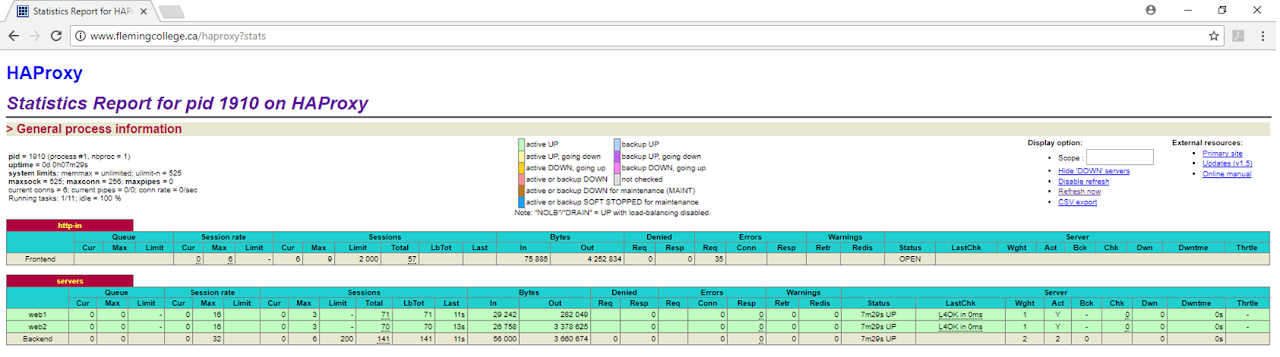
7. Access the HAProxy server statistics Link to heading
Go to www.flemingcollege.ca/haproxy?stats from a web browser, then authentication is required. Type user admin and password p@ssw0rd to access the statistic web.